The whole setup takes about 30 minutes, plus however long Meta takes to review your first template, usually minutes. The full guide has a screenshot of every step.
Your own WhatsApp Business accountAbout 30 minutesMeta reviews your first template
Before you begin
A Meta Business portfolio. Free, at business.facebook.com. Most businesses already have one behind their Facebook or Instagram page.
A phone number for WhatsApp Business that can receive an SMS or a call, and that is not on the WhatsApp or WhatsApp Business app. On another WhatsApp platform, such as AiSensy? Ask them to release it, or migrate it to your own Meta Business, first.
A payment card for Meta, which bills your account for messages.
Your Sozuri login, on the Sozuri WhatsApp Business plan.
Step 1
Choose the WhatsApp plan
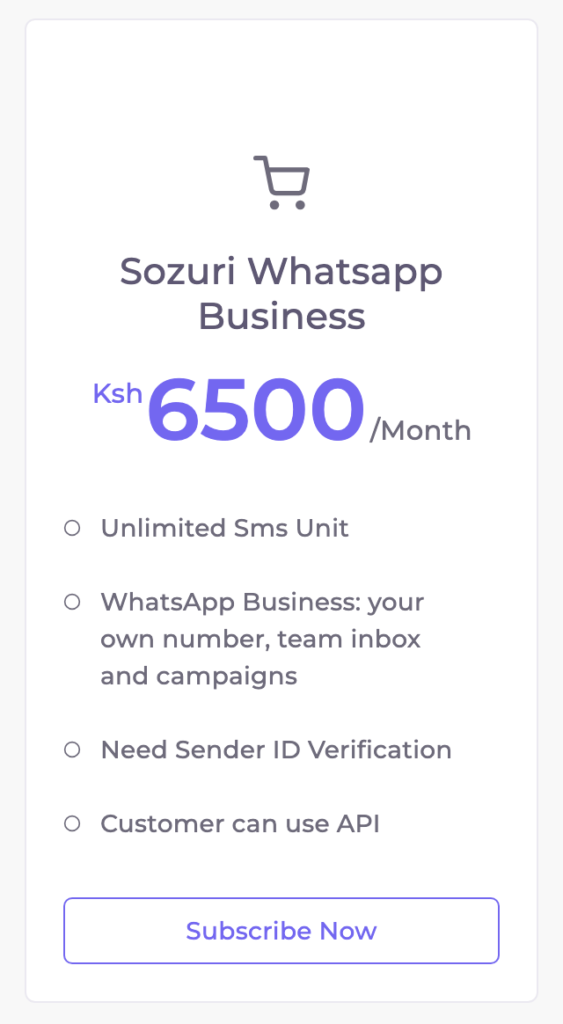
Create your account at automation.sozuri.net and open Subscriptions. Already on a plan? Choose Upgrade Plan. As soon as you are on the Sozuri WhatsApp Business plan, the WhatsApp menu appears.
Step 2
Prepare WhatsApp in Meta
In Meta for Developers, create an app with the use case Connect with customers through WhatsApp, then add your business phone number and a payment method. For the token, create a system user, give it your app and your WhatsApp Business account, and generate a token that never expires. Keep a notepad open for the four values.
What you need
Where it comes from
Phone number ID
Your Meta app → WhatsApp → API Setup
WhatsApp Business Account ID
Your Meta app → WhatsApp → API Setup
Permanent access tokenwhatsapp_business_messaging and whatsapp_business_management
Business Settings → Users → System users
App secret
Your Meta app → App settings → Basic
Step 3
Connect your number
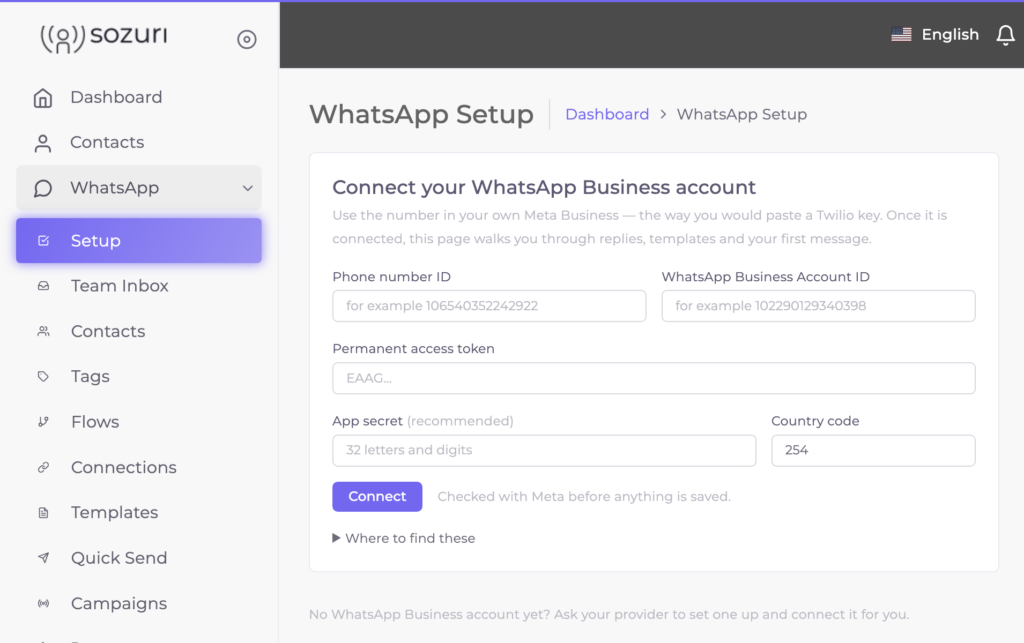
In Sozuri, open WhatsApp → Setup and paste the four values. Sozuri asks Meta whether the token works and whether the number is in that account; nothing is saved until Meta says yes.
Step 4
Receive replies
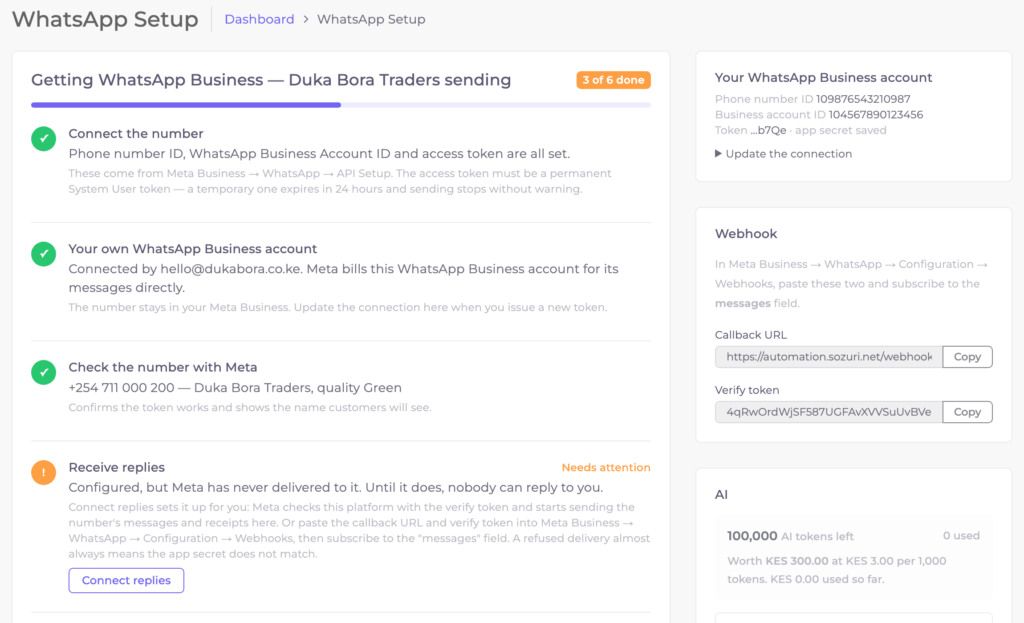
On the Setup checklist, press Connect replies so your customers’ replies and delivery receipts reach Sozuri. Then message your business number from your own phone: it appears in the Team Inbox within seconds.
Step 5
Get a template approved
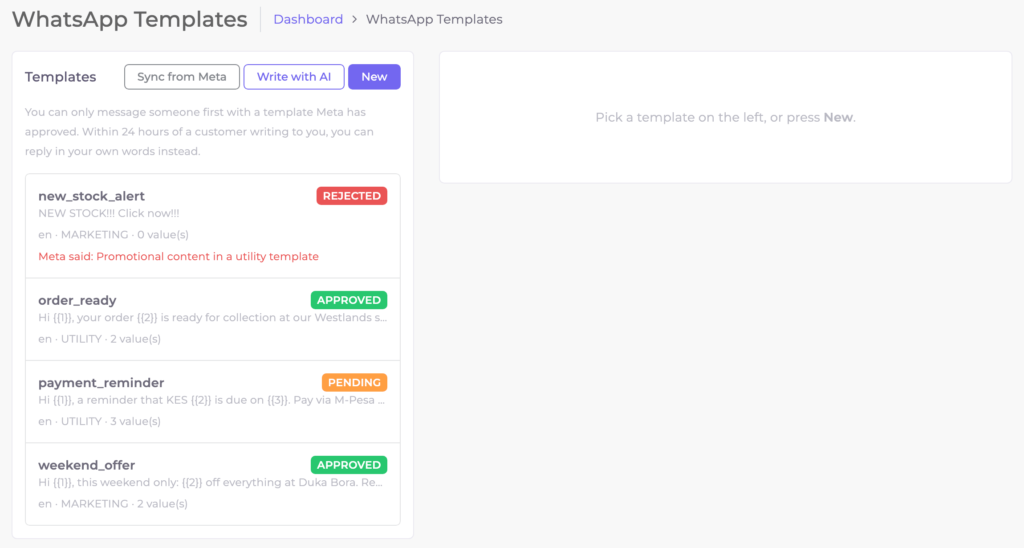
A business can start a WhatsApp conversation only with a template Meta has approved. Write one under WhatsApp → Templates, or use Write with AI, and submit it. Meta usually answers within minutes.
Step 6
Send your first message
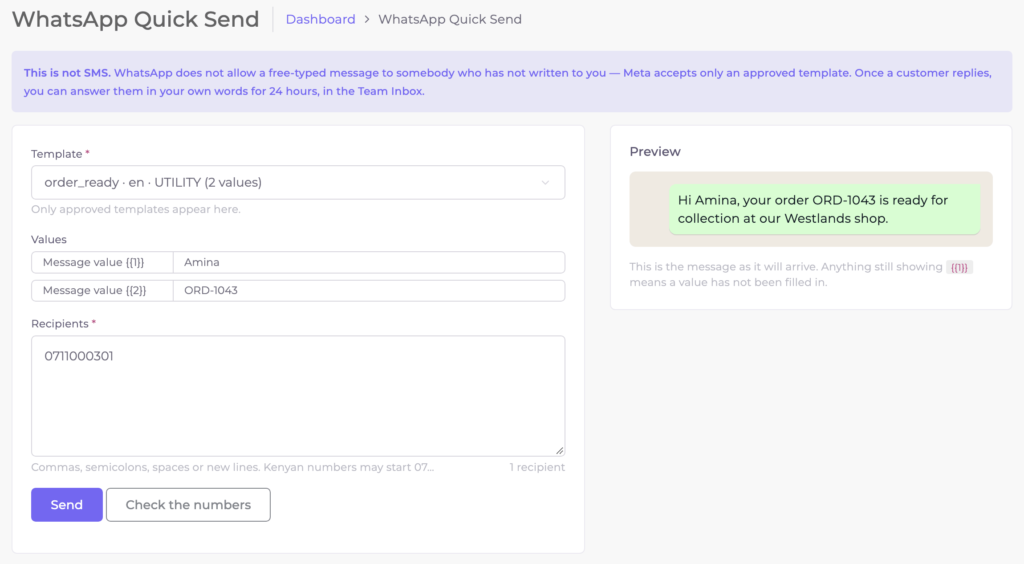
Open WhatsApp → Quick Send, pick the approved template, fill its values and send it to your own number. Reply from your phone, and the reply lands in the Team Inbox: that is the whole round trip working.
Need a hand?
Call or WhatsApp 0722 117 850, or email [email protected]. Say which step you are on; a screenshot of the Setup checklist is the fastest way to help.